
Free follow-up tracker for Excel
It flags every inquiry waiting on you, including the ones with no next step or no date written down. Those are the easiest leads to lose.
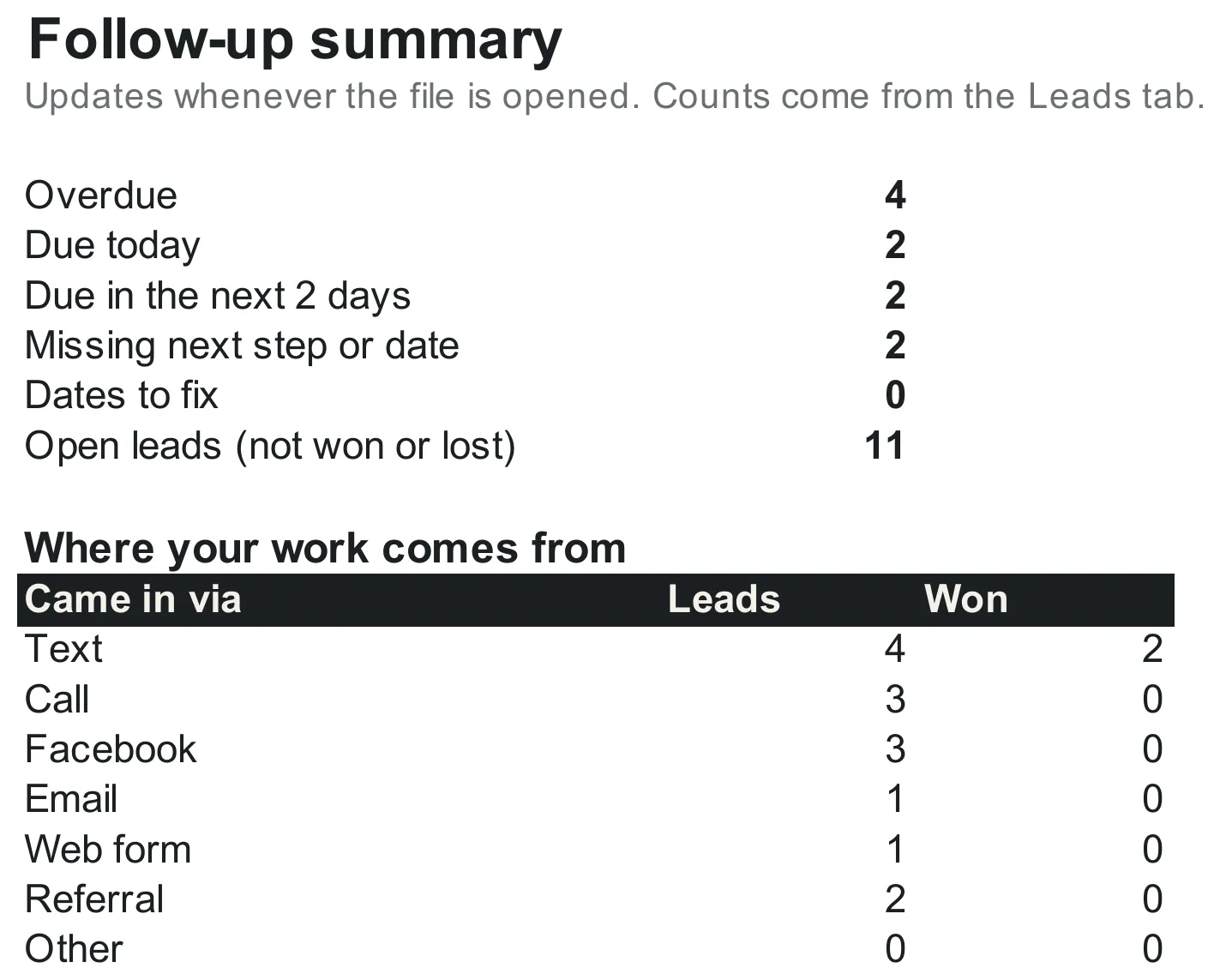
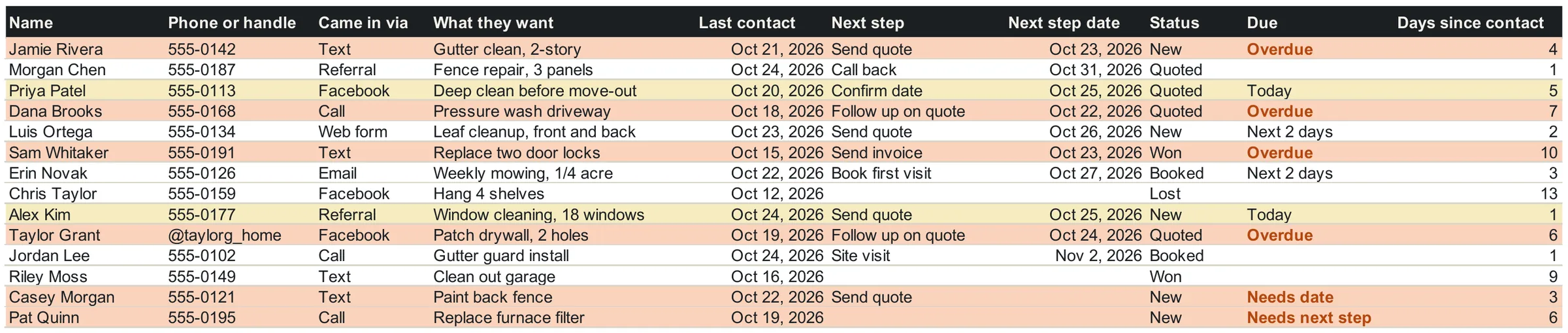
It comes with 14 made-up inquiries, so you can see every flag before you delete them and add your own.
Excel file, 22 KB. Made for Microsoft Excel. If you open it in another spreadsheet app, check the Due column before you rely on it. It won't remind you, and it won't collect inquiries: you open it and type them in.
What it flags
Every row with a name is checked against today's date. Orange rows need you now. Yellow rows are due today.
| Flag | When |
|---|---|
| Overdue | The next step date has passed |
| Today | The next step is due today |
| Next 2 days | Due tomorrow or the day after |
| Needs next step | Nothing written down to do next |
| Needs date | A next step with no date |
| Fix date | A date typed as words, like "Tue" |
The Leads tab
One row per inquiry: who, how they reached you, what they want, the next step and when. Status and Due do the sorting out.
How to use it each day
Once a day, with the file open.
Open it
Due only updates when the file opens, so the flags are fresh each time you look.
Sort by next step date
Overdue rows come to the top. Rows with no date sort to the bottom, and they still need you.
Work the orange rows, then the yellow ones
Orange is overdue or missing something. Yellow is due today.
Write the next step
When you finish a step, write the next one and its date in the same row.
Close out finished jobs
Won with nothing left to do: clear the step and the date. Lost: set Status to Lost.
What it won't do
It won't remind you.
Due only updates when the file is opened. If you don't open it, nothing happens.
It won't collect inquiries.
Texts, calls and Facebook messages still get typed in by hand.
The sample dates age.
Due compares each date with today, so the sample rows look worse every day. Delete them before real use.
Questions
Is it really free? Do I have to give my email?
Yes, it's free, and no email is needed. The download link works on its own. The signup form on this page is separate and optional.
Does it work in Google Sheets?
It's made for Microsoft Excel. In other spreadsheet apps, check the Due column before you rely on it.
What about Excel for Windows, Apple Numbers, or my phone?
It's made for Microsoft Excel. If you open it in another app or on a phone, check the Due column before you rely on it.
Will it remind me when a follow-up is due?
No. The Due column only updates when you open the file, so it works if you open it every day. If you need a reminder that comes to you, a spreadsheet won't do that.
What do I do with the sample inquiries?
Look at them first: they show every flag the sheet can raise. Then delete them before you add your own. They're made up, and because Due compares each date with today, they look more overdue every day.
How do I mark a job as finished?
If you won it and there's nothing left to do, clear Next step and its date. If you lost it, set Status to Lost. A won job with a step still to do, like sending the invoice, keeps its flag until that step is cleared.
Get new how-tos by email
Leave your email to hear about new how-tos and news of the back-office guide.
The download above doesn't need this. The two questions are optional.